
Dandori Academy menu
|
This article or section is about an upcoming or recently released game. |
|
This article or section is in need of more images. |
| Dandori Academy menu | |
|---|---|
| |
| Accessed from | Title screen |
| Provides access to | Dandori Academy gameplay |


The Dandori Academy menu is a menu on Pikmin 4 – Nintendo Switch 2 Edition + Dandori Academy's title screen, under which the player can participate in Dandori Academy practice and exams, as well as manage their user profile for the mode.
Main screen[edit]
When the Dandori Academy mode is entered, the player is given a screen split into two.
The left half includes the game mode's title in a large font, adorned with some stylized Pikmin carrying objects, a box indicating the next exam period, and the player's ID Card. The ID Card contains the look and name of their Student ID, their Dandori Status, and their cumulative Dandori Points. By pressing  , the player can obtain a more detailed view.
The right half of the screen contains tabs at the top that allow the player to choose between listing the training stages ("Training") or the exam stages ("Exams"); the current tab can be changed with  and
 . Underneath the tabs are a listing of stages in the given category.
For training stages, it contains a 3×1 list with the three stages and underneath that a brief description of the highlighted course and two screenshots of it. A checkmark on a stage's thumbnail indicates that stage has been played (i.e. the timer reached 0 in any attempt). Pressing  will enter the stage details screen for the highlighted stage.
For exam stages, it contains a header with the current exam number, and a 3×2 list of the stages therein – "A" stages above and "B" stages below, and left to right, they are ordered as Elementary, Advanced, and Graduate. Flame icons on the stage's thumbnail also indicate the difficulty. A chest icon near a stage's name means the player can receive a reward by playing it. As with the training tab, pressing opens the stage details screen.
In the exam tab, the top of the right side of the screen contains a note telling the player to press  to open the notifications dialog, and a counter of how many Redo Passes they have in their possession, out of 6 total.
In this menu, besides typical menu actions, the player can press  to open the reward list dialog.
ID Card screen[edit]

This detailed view of the player's ID Card shows the same information that the small view shows in the main screen on the left side, though it is shown in a different layout. The right side however contains a table of exam attempt medal results.
Each cell in the table contains the best medal obtained in an official exam attempt. The table is split into 12 exams, titled "Exam 1" to "Exam 12", meaning each one represents a month. Each is divided further into an "A" cell and a "B" cell, representing the two stages available for the currently selected difficulty in that month.
The table shown depends on the currently selected difficulty mode, which can be changed by pressing or .
By pressing  , the player can edit their Student ID's look and name. Pressing
 opens the sticker design dialog, and pressing opens the reward list dialog.
Stage details screen[edit]
|
To do: Explain when the screen unlocks the Master Medal requirements. |
When choosing a stage, another screen appears that shows the details for that stage. This screen is split into two halves, and there are some slight differences between training and exam stages.
The left half contains the stage's name, its objective, a thumbnail image, the time limit, a short description, Oatchi's Pup Strength, and an icon-only listing of the Pikmin types present. With exam stages, they also include its difficulty level as represented by flame icons (from one to three), and a notice if taking that stage's exam will give a reward.
The right half, for training stages, contains a header with "Training", the stage's subtitle ("Course" followed by the number), and a "Sage Wisdom" box, with a stage-specific tip.
The right half, for exam stages, contains a counter for the Redo Passes at the top right, the number of the exam (month) this stage belongs, its subtitle (difficulty name followed by "letter"), a box listing the medal milestones, a button to start a practice run with, and a button to start an official exam attempt with.
Regardless of training stages or exam stages, the buttons that start gameplay contain a counter next to them indicating how many completed attempts have been made (regardless of score achieved). The exam attempt button will be grayed out if the player is not in the correct day for it. Either button will also list the best score underneath it, accompanied by the equivalent medal. Pressing with one of these buttons selected starts the attempt.
In this screen, besides the typical menu actions, opens the scoreboard dialog in exam stages, and opens the reward list dialog in either stage type.
In the game's demo, pressing one of the four unplayable stages brings up a minor menu explaining that the stage is not in the demo and that it will be in the full version instead.
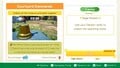 The screen for the training stage Courtyard Commands.
 The screen for the exam stage Mushroom Mash.
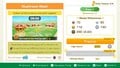 The same screen with the Master Medal unlocked.
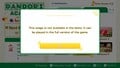 The minor menu seen in the demo.


Notifications dialog[edit]
Pressing in the list of exam stages shows some notifications about exams. Each notification appears in its own dialog box, one after the other, until they are all read, at which point the final dialog box closes, and they can all be read again by pressing the button again.
Each dialog contains a title at the top, an icon to the left representing what the notification is talking about, the notification proper to the right, and an "OK" button at the bottom.
Reward list dialog[edit]
In most screens, pressing opens a dialog box with a listing of the available Dandori Point rewards.
The list is in the form of a table, and can be scrolled up and down. The leftmost column is the Dandori Point milestone, and the second column has one reward item per row. Multiple rewards can be obtained by the same milestone, and in these cases the milestone number is omitted besides the first time it's mentioned. Each reward has an icon indicating its type. An unknown number appears in the top-right corner, presumably indicating how many Dandori Points the player currently has.
Pressing toggles between this view and the progress bar view. The latter view has a stylized scene of a Red Pikmin in a garden-like location with some objects in the background, such as some breakable pots. The clouds across the sky, the Red Pikmin, and the nearby balloon are all animated. The balloon contains an icon representing the next reward in it. At the bottom is a progress bar, with the leftmost point presumably matching the previous reward milestone (0 if none), and the rightmost point representing the next milestone. Above the bar is an arrow pointing at the current progress along the bar, accompanied by the matching number. The Red Pikmin is above this number, and presumably follows it as the bar progresses. The balloon is above the rightmost point of the bar. Underneath all of this is some text informing the player of what the next reward milestone is. Pressing again toggles back to the Reward List menu.
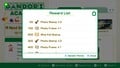 The default menu, showcasing the reward list.
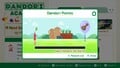 The alternate menu, showing the progress bar.


Sticker design dialog[edit]

The sticker design dialog lets players customize their sticker for use in the scoreboard dialog.
The left portion represents the player's options. The first row lets the player choose the shape of the stamp between the five available options, while the second row lets them choose a color from the 9 available colors. Currently chosen options have a checkmark on them, with the default options being the flower style and the red color.
The right portion shows a preview of what the sticker looks like, with a placeholder score of 999. It also contains a button reading "Looks Good!", which is where the player confirms their selections.
At the bottom of the dialog is a quick notice informing the player that stickers are displayed on the scoreboard.
Scoreboard dialog[edit]
When the scoreboard dialog is opened, a brief loading dialog appears on top of it saying "Please wait...", with an animated Red Pikmin bobbing its head up and down. During this time, the game is fetching the current leaderboard scores for the selected stage.
The dialog is split into three categories. The current category is shown at the top of the screen, and can be swapped with or . There are three categories: Scoreboard, Master Board (contains everyone's rankings), and Friend Board (presumably contains Nintendo Switch Online friend scores).
This scoreboard proper is a chart representing the scores of other players on the selected stage. The chart can be scrolled left and right, and it is split into different sections, one for each medal, with a line plus the score threshold separating them. Then, the stickers of the different players are placed somewhere along the chart – horizontally they match the score axis, but vertically they seem spread out for aesthetic purposes. Each player's sticker shows their score and their character's head and name. The player's own sticker is larger than the others.
In this dialog, pressing will make a prompt appear asking if the player wishes to update the scoreboard with the latest results. Choosing "Update" will show the same sub-dialog as when the scoreboard is opened, and choosing "Cancel" returns to the scoreboard as is.