

Cave confirmation menu
When the player presses the throw button while the active leader is next to a cave entrance, a cave confirmation menu will pop-up. This menu, depending on the game, gives different bits of information about the cave. Pikmin 2 only features one menu, whereas Pikmin 4 features a few small ones on top.
Pikmin 2[edit]
[edit]
| Cave confirmation menu | |
|---|---|

| |
| Accessed from | Gameplay (from area) |
| Provides access to | Gameplay (to cave) |
| Music | Music of the current area |
In Pikmin 2, the background of this menu is a simple, semi-transparent box, gray in color. It also features bits of green, which surround the more important parts of the box. At the top of the box, the cave's name will be displayed, surrounded by a green border. Directly below this name lie 4 circles with a green border, representing if any hazards are present in the cave. From left to right, it displays whether there is fire, water, electricity, and/or poison; if any of these hazards are not present in the cave, the circles will instead be black.
In the center of this menu lies a large box, asking the player if they want to enter the cave. They can choose either "Yes" or "No", and if they pick "Yes" whilst having no Pikmin in their squad, a pop-up will appear saying it's too dangerous to enter.
The final two boxes are located at the bottom of the menu. The left box shows the amount of treasures collected in the cave, and once the cave has been 100% completed, this box will list the total number of treasures as well. The total amount of treasures will be listed even if the cave hasn't been fully completed after the debt has been repaid.
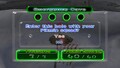 The confirmation menu on an incomplete cave before the debt has been repaid.
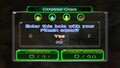 The confirmation menu on an incomplete cave after the debt has been repaid.
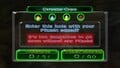 The warning message that appears when trying to enter a cave without Pikmin.


[edit]
| Sublevel confirmation menu | |
|---|---|

| |
| Accessed from | Gameplay (from current sublevel or Challenge Mode stage) |
| Provides access to | Gameplay (to next sublevel) |
| Music | Music of the current area/stage |
This simple menu appears when the player presses the throw button near a sublevel hole; a single menu will appear asking if they wish to delve deeper. If the player has any buried Pikmin, a small message will pop-up asking if the player is sure they want to delve deeper. The player can choose yes, which means that any buried Pikmin will be left behind. If all Pikmin are buried, a different message will appear stating that there are Pikmin sprouts left on the sublevel and that the player should save them.
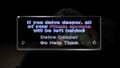 The menu that appears when sprouts are present in the cave.

[edit]
| Geyser confirmation menu | |
|---|---|
| |
| Accessed from | Gameplay (from current sublevel or Challenge Mode stage) |
| Provides access to | Cave results menu or Challenge results menu) |
| Music | Music of the current area/stage |


This is another simple menu that appears when the player presses the throw button near a geyser. A window will show up asking whether the player wants to escape to the surface with their Pikmin. They can either pick yes or no, and just like the sublevel confirmation menu, a warning will appear for any buried Pikmin left in the sublevel.
In Challenge Mode, the wording of the two options will be different, as well as the question asked, but it functions the same. It asks whether the player wants to exit the Challenge Level, with the options being to exit or continue exploring.
The Story Mode geyser takes the player to the cave results menu, and the Challenge Mode geyser takes the player to the Challenge results menu.
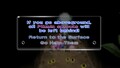 The menu that appears when sprouts are present in the cave.

Pikmin 4[edit]
[edit]
| Cave confirmation menu | |
|---|---|

| |
| Accessed from | Gameplay (from area) |
| Provides access to | Gameplay (to cave) |
| Music | Music of the current area |
Compared to Pikmin 2's menu, the Pikmin 4 version is a bit more detailed. The menu is now a more blueish color, matching how most other menus look in the game. At the top of this menu lies the cave's name, with a long box underneath. This long box shows images of the cave, which rotate in a set cycle, with each image staying on for a couple of seconds. At the bottom right corner of the image box, a small section about wild Pikmin is displayed. These are only filled out once the player has interacted with wild Pikmin in the cave, such as by calling them into the squad.
The near-bottom left part of the menu showcases the cave's objectives, those being Rescues, Treasures, and Onions. If the cave features no Onions, then this objective will not display. On the right side of the objectives lies a progress box, going from 0% to 100%. If the cave has been 100% completed, the percentage number will turn golden. Underneath these two bits of info, a red notice is displayed warning the player that any unfinished tasks on the surface will be called off.
The near-bottom right part of the menu lists the sublevels in the cave. By default, only sublevel 1 will be displayed, but when the player reaches further sublevels, they will be displayed and selectable on the menu. Unlike in Pikmin 2, the player can choose what sublevel to travel to. The sublevel can be selected using  and pressing
  to confirm. Another percentage can be found at the rightmost part of the sublevel, explaining how much of that sublevel has been completed. For sublevels that have been 100% completed, the percentage will turn golden, and a golden flower will appear on the left side of the sublevel box.
Along the actual bottom of the menu lie 3 button prompts, displayed towards the right. These are  Voyage Log,
  Close, and Confirm. Pressing opens up that cave's respective Voyage Log, and pressing closes this Voyage Log. Pressing closes this menu, taking the player back to regular gameplay. Pressing on the sublevel button brings up another menu, which is identical to the Onion menu. Once players press again, they will enter the cave.
However, for dark caves such as the Sightless Passage and Below-Grade Discotheque, a warning will pop-up first stating that the cave is very dark and will be hard to explore without the Headlamp. Players can still enter the cave, but it will be quite dark. The exit button will be selected by default, advising the player to buy the gear upgrade.
Additionally, if the player attempts to enter the cave without any Pikmin, a warning will pop-up stating that the cave will be hard to explore without any. Players can still choose to enter the cave, but the Cancel button will be selected by default.
 The confirmation menu on a complete cave. Notice the addition of the Onion objective.
 The menu that appears when the player has no Headlamp equipped.
 The menu that appears when the player attempts to enter a cave with 0 Pikmin.


[edit]
| Sublevel confirmation menu | |
|---|---|

| |
| Accessed from | Gameplay (from current sublevel) |
| Provides access to | Gameplay (to next sublevel) |
| Music | Music of the current sublevel (quiet) |
Just like Pikmin 2's menu, this menu is also quite simple. It asks whether the player would like to enter the next sublevel, with the options being "Continue" or "Cancel". Pressing Continue takes the player to the next sublevel, and pressing Cancel exits the menu. However, if any buried Pikmin exist in the sublevel, pressing Continue will lead to a warning menu, stating that if the player enters the next sublevel, any unplucked sprouts will disappear. Only one menu will appear, with the castaway having the most priority and the treasure menu having the least.
If in the sublevel, any castaways, Flarlics and/or treasures have not been retrieved, another menu will appear, asking whether they are sure they want to leave without them.
 The menu that appears when sprouts are present in the cave.
 The warning menu for any left behind castaways.
 The warning menu for any left behind Flarlics.
 The warning menu for any left behind treasures.


[edit]
| Exit fan confirmation menu | |
|---|---|

| |
| Accessed from | Gameplay (from current sublevel) |
| Provides access to | Gameplay (to area) |
| Music | Music of the current sublevel (quiet) |
This simple menu asks whether the player would like to return to the surface. If the player stands on the exit fan and presses , a button prompt will appear called Back to Surface. Pressing will bring up a menu asking if the player wants to return to the surface. But just like the sublevel confirmation menu, if any buried Pikmin exists in the sublevel, pressing Continue will lead to a warning menu saying that sprouted Pikmin will disappear.
If the player attempts to leave via the exit fan, a similar message will appear if they have left behind any castaways, Flarlics and/or treasures. If the sublevel features both a castaway and a Flarlic (only in the Last-Frost Cavern and Plunder Palace), then only the castaway message will appear. If said castaway is rescued, then the Onion menu will show up.
 The menu that appears when sprouts are present in the cave.
 The warning menu for any left behind castaways.
 The warning menu for any left behind Flarlics.
 The warning menu for any left behind treasures.


[edit]
| Dandori Challenge confirmation menu | |
|---|---|
| |
| Accessed from | Gameplay (from current area or from speaking with Jin) |
| Provides access to | Gameplay (to Dandori Challenge) |
| Music | Music of the current area (quiet) or Dandori Preparation |


This menu can be accessed from 2 different places, and it will be slightly different depending on where it was accessed from. If the menu was accessed from an area, such as in the Sun-Speckled Terrace, players will be taken directly to the start stage screen. On this menu, the Dandori Challenge's name will be displayed at the top with a cycling image box underneath, just like the cave confirmation menu. At the top and center of the image lies the stage's time limit, and at the bottom right lies a notice of what Pikmin will be present in the stage.
On the bottom half of the screen lie two buttons: "Start" and "Cancel". Pressing Start takes the player into the Dandori Challenge, and pressing Cancel takes them back to regular gameplay. Just above these two buttons lies a small piece of text stating:
Collect all the treasures and creatures within the time limit.
Just above this text lies a warning in a red border stating that the player's Pikmin cannot enter with them, and they will be sent back to the Onion.
At the bottom of the menu lie a couple of button prompts. These are:  Options,
  Gameplay Guide, Co-op Mode, Close, and Confirm. Pressing takes the player to the Options menu, and holding the takes the player to the Gameplay Guide. Pressing bring up the Nintendo Switch's controller connection menu.
If the player speaks to Jin to access this menu, then a list of Dandori Challenges will appear first. They are displayed in a similar fashion to the Dandori Battle menu accessed from the title screen. There are a few differences, however. Firstly, a medal icon can be found on the right part of the Select Stage button, going from bronze, to silver, to gold, and to platinum. On the right side of the menu, where the stage's image is located, lies the player's high score of that stage. This high score comes from the score achieved when the player completed the stage during Story Mode. At the bottom right of the image lies the Dandori Level, represented by fire icons. The harder the stage, the more icons will be lit, ranging from 1-5. At the bottom of this menu lie the same button prompts as noted in the above paragraph.
Selecting a stage brings up a very similar menu to the ones brought up when accessing the stage during an area. The only differences are the presence of the medal icon at the top right, the red-bordered warning is removed, and the button labelled Enter has been swapped to Start. The button prompts at the bottom of the menu have been removed, sans Back (which changed from Close), and Confirm.
A very similar menu will appear when accessing the Trial of the Sage Leaf's cave entrance. The main difference being the banner at the top of the menu. Both its functionality and style are the same as the Dandori Challenge Stage Selection menu. However, in the location of where the Dandori Challenge stage's name would be, it is instead replaced with the selected story's task, such as defeating all creatures.
 The Dandori Challenge Select Stage menu.
 The Trial of the Sage Leaf Select Stage menu.


[edit]
- For the menu seen when accessing Dandori Battle mode, see Dandori Battle menu.
| Dandori Battle confirmation menu | |
|---|---|
| |
| Accessed from | Gameplay (from current area or from speaking with Corgwin) |
| Provides access to | Gameplay (to Dandori Battle) |
| Music | Music of the current area (quiet) or Dandori Preparation |


Just like the Dandori Challenge confirmation menu, this menu can be accessed from 2 different places, both in a similar fashion to Dandori Challenges. The first way is by accessing the menu from an area, like the Blossoming Arcadia. If accessed here, players will be taken directly to the start stage screen. This menu will resemble the Dandori Challenge's menu exactly aside from 2 key details. The first being the name of the Battle, and the second one will be on the image itself. On the image, the player's avatar and either the Olimar leafling or Louie will be present, with the words "VS." between them. The player character will have their name underneath. Pressing lets the player enter the stage and pressing takes them back to regular gameplay.
If the player speaks to Corgwin to access this menu, then a list of Dandori Battles will appear. It functions the exact same as the Dandori Challenge menu, with the main difference being what the image is at the top of the menu. Rather than it having a green background with a pair of Temporal Mechanisms, it is instead a blue-red background with the player's and the Olimar leafling's faces. Stages will unlock once they've been beaten during Story Mode.
 The Dandori Battle Select Stage menu.

Trivia[edit]
- Despite Pikmin 2's geyser confirmation menus having different message depending on whether Story Mode or Challenge Mode is being played, they share the same warning for when the player attempts to leave / exit the sublevel when sprouts are present.
- In Pikmin 4, both The Mud Pit and the Cavern for a King feature dark sublevels, yet the warning about not having the Headlamp equipped will not appear.
- The menu for any left behind Flarlics in Pikmin 4 states "Not all Onions have been collected", despite the fact that regular Onions cannot be found in caves.
- Flarlics are classified as Onions in the game, so this menu is not incorrect.