


Loading screen

|
This article or section needs to be cleaned up, either its format or general style. |
The Pikmin games display a loading screen while they are loading content to show to the player. This happens in many places, such as when the game starts up or when an area is being loaded.
Loading screens[edit]
Pikmin[edit]
In Pikmin, there is only one loading screen, which takes place before an area is entered; this is where the area is loaded. The screen is purely black apart from the name of the area in orange at the center. When the area is done loading, the screen automatically fades away, and the landing cutscene begins.
Pikmin 2[edit]
The game's startup has its own loading screen, showing the Nintendo logo (the color varies depending on the version), with several Pikmin of one type or various types dropping down on or popping up from it. After a second, the Pikmin jump back down behind the logo, or a Purple Pikmin suddenly drops on the logo, knocking the others away.
Pikmin 2 uses a very similar area loading screen to Pikmin for loading the main areas, but the name is yellow, its highlights have small glares, and a rippling effect of some text graphic occurs behind the name. When loading a cave's sublevel in story mode, the name in white will appear to fall and bounce one letter at a time into a rippling, dripping liquid over a black screen (although the effect only covers so much text; not all letters in the Subterranean Complex produce this effect). Below that is the name of the sublevel. The same screen occurs while loading a Challenge Mode level, except instead of the liquid effect there is a cloud of red and orange squares that slowly pulsate behind the text.
Before loading a 2-Player Battle stage, the game shows a different loading screen. The stage's name appears at the top, with a fire effect applied behind it. Just under it, the text "Loading..." appears aligned to the right. The second half of the screen has a large box of information. The top of the box lists the two marble-related win conditions, and under that, there is a random advisory for the game mode. This screen only disappears when either player presses  /
/  , or automatically 10 seconds after the game is done loading.
Interestingly, in most cases, the rippled text that appears behind an area's name is not the name itself but something different. On the Valley of Repose, the rippled text is indeed "Valley of Repose", but on the Today's Report screen, which also has a fiery-ripple effect, the same "Valley of Repose" text is what appears behind "Today's Report". On the Awakening Wood, the text is 今日の成績? (lit.: "Today's Results"), and on the Perplexing Pool and Wistful Wild, it is "Challenge Cave", in a slightly different font from the norm.
Pikmin 3[edit]

When loading an area in Pikmin 3, a familiar black screen with the area's name in yellow appears, with a subtle reflection and rippling behind it. At the bottom, there is a randomly-picked gameplay tip, preceded by a relevant icon. This tip may get swapped out for another tip if the game takes longer to load. The same screen appears in Bingo Battle, and in Mission Mode, the screen is the same, except it also writes down the type of mission under the level's name. Besides the area loading screens, the game also shows a screen with a static image of a few Pikmin in a green environment when loading the whole game. A loading icon will also appear with a silhouetted Red Pikmin running along a loading wheel. After this screen comes the title screen.
Pikmin 4[edit]
|
The following article or section is in need of assistance from someone who plays Pikmin 4. |

All loading screens in Pikmin 4 are made up of a black background with 5 possible UI elements that can appear depending on what is currently being loaded. These UI elements are:
- An animated "Saving..." icon that appears briefly in the top-left.
- The amount of raw material and Sparklium that the player has in the top-right.
- The location's name in the upper-center, written in yellow text with a subtle glow of red behind it, alongside some information generally written in blue below it.
- A tip section related to the type of location the player is heading to in the bottom-left.
- An animated Pikmin silhouette in the bottom-right.

When an area or a cave is being loaded, all UI elements appear and the information in the center shows the Rescues, Treasures, and Onions found. If the Treasure Gauge+ is unlocked, the total amount of treasure will also be shown. If the player is in a cave, the current sublevel will also be shown right below the cave's name. Furthermore, this text will fade into "Final Sublevel" at the end of the loading screen if the player is at the last sublevel of the cave.
When a Dandori Battle or Dandori Challenge is being loaded, every UI element excluding the top-right one appears. Here, the center information displays the Dandori Level, rated from one to five flames. Moreover, if the battle/challenge has already been cleared, the player's highscore and medal also appear below it. Moreover, when loading a night expedition, a similar configuration appears with only a few differences: The Dandori level is replaced with a smaller danger level, the base's name appears right underneath the area's name, and the number of Glow Seeds is displayed under the danger level.
When exiting the previous types of locations, a loading screen will appear with only the "Saving..." icon, the tip section and the Pikmin silhouette.
Moreover, when a day starts at the Rescue Command Post or a cutscene is being loaded, only the "Saving..." icon appears, and whenever the game is booted up or the player goes back to the title screen, only the Pikmin silhouette shows up.
In update 1.0.2, a progress bar was added underneath the Pikmin silhouette that will show the current progress of the loading screen. However, the bar does not appear whenever the game boots up or the title screen is being loaded.
Pikmin Bloom[edit]

When Pikmin Bloom is opened, a loading screen will appear. The background artwork has changed between updates, but always contains a variety of Pikmin types, usually carrying seedlings and/or fruit. A bar across the bottom will fill up with green and dark green stripes, and will advance to the main menu when full. Above the bar there is a reminder for the player to be alert and aware of their surroundings. Updates 41.0 and 114.0 added loading screen tips about the game that appear a few seconds after the safety reminder, changing every few seconds. Tapping the screen will also change the tip.
All loading screen artwork is drawn by an artist known as Amelicart (ア・メリカ?).[1]
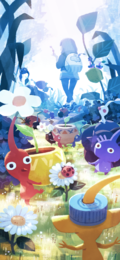 v33.1 - v47.1
(Release day to July 3rd, 2022.)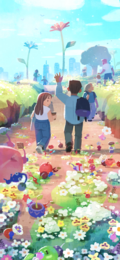 v48.0 - v56.1
(July 4th to November 6th, 2022.)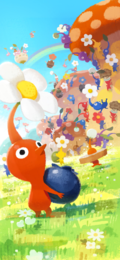 v57.0 - v70.0
(November 7th, 2022 to June 14th, 2023.)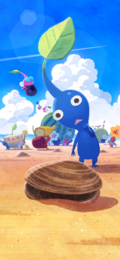 v71.0 - v78.1
(June 15th to September 27th, 2023.)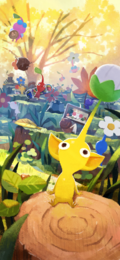 v79.0 - v82.0
(September 28th to November 21st, 2023.)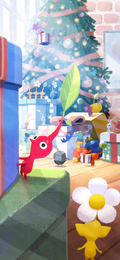 v83.0 - v87.0
(November 22nd, 2023 to February 13th, 2024.)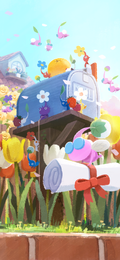 v88.0 - v96.0
(February 14th to June 19th, 2024.)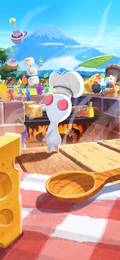 v97.0 - v101.0
(June 20th to August 27th, 2024.)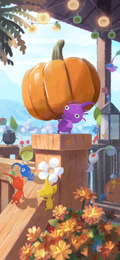 v102.0 - v108.0
(August 28th to December 8th, 2024.)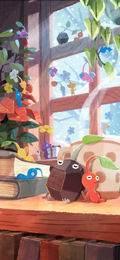 v109.0 - v114.0
(December 9th, 2024 to March 12th, 2025.)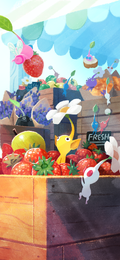 v115.0 - v120.0
(March 13th to June 4th, 2025.)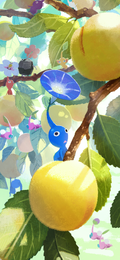 v121.0 - v127.0
(June 5th to September 16th, 2025.)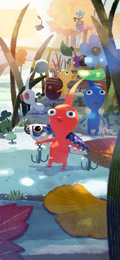 v128.0 - v131.1
(September 17th to November 9th, 2025.)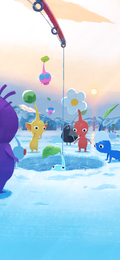 v132.0 - v139.0
(November 10th, 2025 to March 9th, 2026.)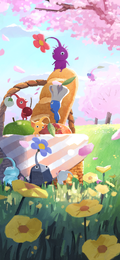 v140.0 - v145.1
(March 10th to June 3rd, 2026.)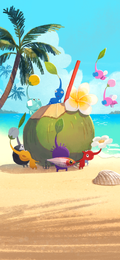 v146.0 - v152.0
(June 4th to September 8th, 2026.)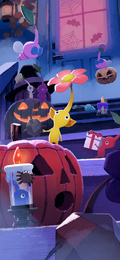 v153.0 - Now
(Since September 9th, 2026.)


Tip[edit]
Loading screens in some game modes show a randomly-selected tip.
Pikmin 2[edit]
2-Player Battle[edit]
Tips for the 2-Player Battle mode in Pikmin 2.
| Icon | US GCN/Wii / EU GCN / NS | EU Wii |
|---|---|---|
| An advisory: You can't carry your own marble. |
Advisory Note: You can't carry your own marble. | |
| An advisory: Pikmin lost to opposing Pikmin will become seeds. |
Advisory Note: Pikmin lost to opposing Pikmin will become seeds. | |
| An advisory: Roulette creatures vanish when you defeat them. |
Advisory Note: Roulette creatures vanish when you defeat them. | |
| An advisory: Use your sprays wisely to turn the tide of battle! |
Advisory Note: Use your sprays wisely to turn the tide of battle! | |
| An advisory: You can't pluck, throw, or spray while engaging enemy Pikmin. |
Advisory Note: You can't pluck, throw, or spray while engaging enemy Pikmin. | |
| An advisory: Get a cherry for one roulette spin. You can store up to four. |
Advisory Note: Get a cherry for one roulette spin. You can store up to four. |
While technically, it is true that there can be up to four roulette wheel spins in queue, this can lead to players believing they can only have four powers in queue, when they can actually have five (the four queued spins plus the current power on standby).
Pikmin 3[edit]
Tips in Pikmin 3 are in the lower-left corner of the screen, and have an icon in a bubble on the left side. In the tables below, when there are 2 icons, the first one is used in the original Pikmin 3 and the second one is used in Pikmin 3 Deluxe.
Story Mode[edit]
Tips in Story Mode only appear on day 3 and later, and also appear when the player suffers a Game Over.
| Icon | US | Europe |
|---|---|---|

|
Listen closely! Somewhere out of sight, Pikmin could be perishing! | Listen! Somewhere Pikmin are losing their lives! |
| Assign time-consuming tasks to just a few Pikmin. | Assign time-consuming tasks to just a few Pikmin, and leave them to it! | |
| Consult the Exploration Notes to master the controls! | ||
|
|
Fragments of a bridge may not all be in the same place. Search everywhere and assign your Pikmin appropriately! | |
|
|
Work on multiple tasks at once to use Pikmin and time effectively! | Work on multiple tasks at once to use both your Pikmin and your time effectively! |
| Use information from your radar to help you look for Brittany! | ||
|
|
If you get stuck, you can go back to a previous day and start from scratch! | |
| The type and the number of Pikmin can change how effective they are at a task. Be sure to experiment! | The type and the number of Pikmin involved in a task can vary the results! Be sure to experiment! | |
| After carrying fragments, Pikmin return to where the fragments were! | After carrying Fragments, Pikmin return to where the Fragments were! | |
Pluck sprouts as a team to work faster! You can continuously pluck just by pressing  / / / /  / /  once! once!
| ||

|
If you leave a crew member near Pikmin sprouts, he or she will pluck them automatically. | |
| Look for any areas that you can reach with two crew members! You may be able to blaze some new trails! | ||
| Rock Pikmin pack a punch when thrown. | Rock Pikmin pack a mean punch when thrown directly at things. | |
| Fruit will be in the same place the next day after the sun goes down! Try to get it as close to the ship as possible! | After the sun goes down, fruit will be in the same place the next day. Try to get it as close to the ship as possible! | |

|
Boss enemies you hurt will maintain their damage! Whittle their health down, and defeat them the next day! | Boss enemies you hurt will stay hurt the next day. Whittle their health down and finish them off tomorrow! |
| Boss-enemy bodies will still be there tomorrow! Don't miss a chance to increase your Pikmin! | Boss enemy bodies will still be there the next day! Don't miss the chance to increase your Pikmin! | |
| You can throw Pikmin across obstacles! Explore any areas near bridges! | ||

|
If you're low on juice, prioritize your search for fruit! | If you're low on juice, make searching for fruit your priority! |
| Some places can only be reached with all three crew members! Look for these areas to open up new pathways! | Some places can only be reached with all 3 crew members! Look for these areas to open up new pathways! | |
|
|
Before you start exploring, look at the map on the KopPad to plan your day! | |
|
|
"Go here" is convenient when you want to return to the Onion! | Go Here! is convenient when you want to return to the Onion! |
|
|
"Go here" is convenient for gathering up any wayward Pikmin! | Go Here! is convenient for gathering up any wayward Pikmin! |
Mission Mode[edit]
| Icon | US | Europe |
|---|---|---|
|
|
Red Pikmin are fierce warriors that are immune to fire! | Red Pikmin are impervious to fire and pack the biggest wallop! |

|
Blue Pikmin don't mind getting wet. In fact, they love it! | Blue Pikmin love water! Being submerged is all part of a day's work! |
|
|
Yellow Pikmin love electricity! They can also reach high spots and dig quickly! | |

|
Winged Pikmin are delicate, but they put up a fight against flying enemies! | |
|
|
Rock Pikmin are tough and can cause some serious damage if they land on a target! | Rock Pikmin are super solid! Landing a direct hit can inflict serious damage! |

|
White Pikmin may be weak, but they're fast and poisonous! | |

|
Purple Pikmin are slow, but they're as strong as 10 Pikmin! | |

|
The red nectar is Ultra-Spicy Nectar! Spray it on your squad with  / /  / or (icon) on / or (icon) on  to get it fired up! to get it fired up!
|
The red nectar is Ultra-Spicy Nectar! Spray it on your squad with / / , or (icon) on the , to get them fired up!
|

|
Drinking yellow nectar makes the Pikmin's flowers bloom! | |

|
Throw Pikmin into a Candypop Bud to turn them into sprouts that are the same color as the flower! | Throw Pikmin into a Candypop Bud to turn them into sprouts of the same colour! |

|
A pellet is packed with nutrients. When retrieved by Pikmin matching its color, it will produce many sprouts. | A pellet is packed with nutrients. When retrieved by Pikmin matching its colour, it will produce a lot of sprouts. |

|
Nuggets are beautiful gems that sparkle softly! One of these gives you  × 3! × 3!
| |

|
Golden Sunseeds are packed with Piktamin U! One of these gives you × 200!
| |

|
Golden Grenades are packed with Piktamin U! One of these gives you × 100!
| |
 
|
Move the pointer over a piece of fruit to see how many it's worth.
|
Move the pointer over a piece of fruit to see how many it will give you!
|
 
|
Move the pointer over a creature to see how many  points it's worth! points it's worth!
| |

|
Earn a bronze medal here to unlock the next mission! | Earn a bronze medal in this course to unlock the next stage! |

|
Defeat all enemies or collect all of the treasure to earn a platinum medal! | Complete the mission to earn a platinum medal! |
|
|
Defeating a boss in Story mode unlocks it as an opponent in Mission mode! | |
|
|
A bronze medal makes you a lieutenant! | |

|
A silver medal makes you a captain! | |

|
A gold medal makes you a general! | |
|
|
A platinum medal makes you royalty! | |


