


HUD
|
The following article or section is in need of assistance from someone who plays Pikmin 3. |
|
This article or section is in need of more images. Particularly: |
The heads-up display (HUD for short) is the name given to the informational features presented on-screen at all times during the main game. These are usually static, and provide vital information to the player, normally numerical, such as the number of Pikmin in the party, the current day, and the number of sprays available.
Screen elements[edit]
This section lists the HUD elements that are drawn on the screen, in a static position, in order to be accessible to the player during gameplay. In all games, these elements drop in and out smoothly from the edges of the screen whenever a menu opens or closes, or when the day begins.
Main[edit]
While playing, it is important for the player to keep track of several things, such as the number of Pikmin available, without having to access a menu to do so each time. The most important elements appear in-game on the edges of the screen, as to not obstruct the view of the game world. The following items are the most common ones, throughout games and game modes:
Sun Meter[edit]


The Sun Meter[1] (known as the clock in Pikmin 4[2]) indicates how much remains of the current day in Story Mode. In the first three mainline games and Pikmin 3 Deluxe, it is a bar with a pointer that is placed at the start when a day begins, and moves to the right as time goes by, eventually reaching the end of the bar at night time. The meter is found spanning from the top-left of the screen to almost the right side, as the top-right corner is taken by the day counter (in Pikmin 3 Deluxe, the juice counter occupies that place instead). In Pikmin 4, the Sun Meter is replaced by a clock whose needle moves from left to right as the day progresses. Night expeditions feature a meter that serves the same purpose and looks the same, except the sun icon in the bottom is replaced by a moon. Furthermore, Olimar's Shipwreck Tale displays a number above the sun icon for how many days that remain before Captain Olimar's life support system fails. If the Survey Drone is being used and time is paused, then the sun/moon icon will be replaced with a grey pause symbol and the clock itself will dim a little bit. The clocks seen in the day or a night expedition will be the same in this instance; though the clock seen in Olimar's Shipwreck Tale will still have the day number above it.
The meter in the first three games consists of 13 bubbles, each one representing one Earth hour. The first, central and final bubbles have a secondary bubble; this pinpoints the start, middle and end of the day. The pointer that moves along the meter is a large circle with a sun inside. The dials for days and night expeditions in Pikmin 4 only contain seven bubbles. A red field in Pikmin 4's clock represents sunsets or sunrises; sunsets begin between the sixth and the seventh bubble, and sunrises begin on the sixth bubble.
Whenever the sun icon reaches one quarter, one half, or three quarters into the meter, it pops out for a second, and the sound of some small bells plays. At the middle of the day, these bells play twice in a row, and in Pikmin 2, two church bells can also be heard. These minor details call the player's attention, and help them keep track of the passage of time. Just before sunset, the first two bars of the third quarter-chime of Westminster Quarters plays, with the notes G♯4, C5, A♯4, D♯5, C5, G♯4, A♯4, D♯4.
Pikmin 4 does not show a clock in situations where time does not pass, such as the Rescue Command Post and the tutorial with Captain Olimar. The clock is also not shown in caves, where time is slowed down compared to the surface.
Day[edit]


At the top right of the screen, the day counter can be found in the Story Modes of all mainline Pikmin games except Pikmin 3 Deluxe and Pikmin 4. The current day number is inside a bubble, under the word "day" in Pikmin (and its respective re-releases), and "Day" in the following games. The number on this counter is compressed horizontally to fit inside the bubble; this becomes evident after the player reaches 1000 days on the expedition.
Health[edit]
- See: Health


On the bottom-left corner, an icon for each available leader can be seen, each inside a bubble. To the right of the bubble, there is a health wheel, representing the leader's health. In Pikmin 4, the location of these icons are found towards the central left instead, and instead of a health wheel, it is a health bar, which gets extended depending on what gear is equipped. If Oatchi is fed a Scrummy Bone at full health, the bar will faintly glow yellow.
In Pikmin 3 Deluxe, if a leader is in another leader's group, their icon will be darkened. In Pikmin 4, the active leader's icon will have a light-blue outline. If the rookie Rescue Officer is riding Oatchi, then both icons will be outlined, otherwise only one icon will be highlighted at a time. As of the 1.1.0 update in Pikmin 4, an additional detail has been added to Oatchi's health bar. An small icon of him will be displayed underneath his face icon, showcasing what his Buff level is.
In Hey! Pikmin, the health display is completely different from the one in the mainline games. Olimar's health appears in the top left of the top screen, and is displayed as a group of bars next to an icon of Olimar. Getting hit by an enemy will reduce the number of colored bars by 1, and collecting a heart will increase the number of colored bars. The bars are green by default, but if they are running out, they will turn yellow and then red.
In Pikmin Adventure, the health is also different to the ones present in the mainline games. The player's health is shown at the top-left part of the screen, being represented by 3 red-colored hearts inside of a box. If a heart is lost, such as from an enemy attack or falling into a pit, then a heart turn grey and crack in half before then falling down briefly and disappearing. When the player picks up a large heart, they are given an additional 3 hearts and the box containing them will expand to the right, allowing these bonus hearts to fit.
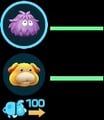 The newer health bars from version 1.1.0, showing Oatchi's Buff level.
 The heart box in Pikmin Adventure with the maximum 6 hearts


Standby Pikmin[edit]


In Pikmin and Pikmin 2, to the left of the Pikmin counter, there is a bubble with the icon of a Pikmin inside. This icon represents the type of Pikmin closest to the current leader. When the throwing button is held, a Pikmin from this type will be grabbed, as it is the closest one. There are however some times in which a different Pikmin is held, likely caused due to calculation errors on the game's behalf. This problem is more prominent in the first game. If there are no Pikmin nearby, a hollow figure in the shape of a Pikmin will appear instead. The icon shown in this bubble will also reflect the Pikmin's maturity.
In Pikmin 3 and Pikmin 4, three bubbles (Pikmin 3) or three icons (Pikmin 4) appear, with the central one being the biggest and most important: it shows what type of Pikmin will be thrown next, regardless of distance. By pressing  /
/  /
/  in Pikmin 3 or
  /
/  /
/  in Pikmin 4, the player can toggle to a different Pikmin type. The next two types in the list will be represented in the smaller bubbles. If there are only one or two types, then only one or two bubbles will appear. There is also a number alongside the larger bubble, indicating how many Pikmin of that type there are in the party. In Pikmin 4, the numbers also appear for the smaller icons. In these two games, the icons do not reflect the maturity of the next Pikmin to be thrown; all are leaf Pikmin in Pikmin 3, and the maturities are not shown in Pikmin 4.
In Hey! Pikmin, a bubble for each Pikmin type encountered so far in the area is present in the lower left corner of the touch screen. The largest bubble represents the type that Olimar can currently throw. The player can switch to a different type by tapping another type's bubble, which will make it the largest bubble. If a type is not in Olimar's squad but has been used in the area already, it is represented by a red X mark.
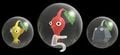 The current type and neighboring types in Pikmin 3 Deluxe's standby Pikmin counter.
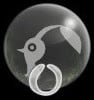 The standby Pikmin counter in Pikmin 3 Deluxe when no Pikmin are in the leader's squad.
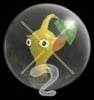 The standby Pikmin counter in Pikmin 3 Deluxe when the leader cannot reach the currently selected Pikmin type.
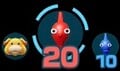 All 3 icons, one of which is for Oatchi, in Pikmin 4.

_P3D.jpg)
_P3D.jpg)

Pikmin counter[edit]


The Pikmin counter displays statistics about the player's Pikmin, and these statistics vary by game.
In the mainline games, the Pikmin counters are displayed in the bottom-right corner of the screen. Some numbers in rectangular bubbles appear, aside from Pikmin 4, separated by slashes. The digits become compressed horizontally, in case the number is too large to fit inside the bubble normally.
The first number indicates the total of Pikmin within the current leader's squad. The player can use this number to know how many Pikmin are following them, especially when they're lagging behind and are prone to abandon the party altogether due to the distance. The following number specifies how many Pikmin there are in the field. This can be used to keep track of Pikmin that are dying off-screen.
In Pikmin and Pikmin 2, a third number also exists. This indicates the total number of Pikmin, which is the sum of the Pikmin on the field and the Pikmin inside all Onions.
Due to the importance of having a large amount of Pikmin in the first game's Challenge Mode, the total Pikmin counter is larger than the rest. In contrast, this number is entirely absent in Pikmin 2's Challenge Mode, 2-Player Battle mode, and while inside a cave in Story Mode, as that information is not important during those times.
In Pikmin and Pikmin 2, the in-party number is slightly larger than the rest. A multiplication sign also appears between the standby Pikmin icon and the number of in-party Pikmin. In addition, in the first game, the in-party counter's bubble is always green, and the field counter's bubble becomes red when there are 100 Pikmin on the field.
In Pikmin 4, if the Idle Counter is equipped, the Pikmin counter is changed. Above the rightmost number (the field number), a large bubble will appear above it. In this bubble, which is pointing towards the field number, an icon of a Pikmin lying down is present with a number underneath, representing the total amount of idle Pikmin on the field.
In Hey! Pikmin, the Pikmin counter is at the top of the top screen to the right of Olimar's health. It contains a Pikmin icon and the number of Pikmin currently in the area. If not all of those Pikmin are in Olimar's squad, the number will turn from white to gray, and if some Pikmin have been separated for some time, the number will flash red.
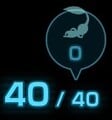 The Pikmin counter in Pikmin 4 when the Idle Counter is equipped.

Treasure Gauge[edit]


In Pikmin 2, the Treasure Gauge appears on the HUD above the Pikmin counter, after the Prototype Detector has been collected. In Pikmin 4, this gauge appears towards the left instead, just above the player's health bars. It helps the player to track down every treasure in the game.
For Pikmin 2, there is a needle that wiggles continuously when a treasure is in the current field or cave, no matter if an enemy has it or it is buried. As the active leader approaches a treasure, the needle moves to the right and starts to flash and beep. When all the treasures in an area have been collected, or there were never any present to begin with, the device automatically turns off with an echoing beep, a flash, and a faint snore. Finally, the box then turns gray to signal the inactivity.
For Pikmin 4, instead of a needle, the gauge is implemented using a row of lights. As the player approaches whatever is being detected (treasure or castaway), it will light up from left to right. It is comprised of 8 lights; the first 3 are blue, the next 3 are green, and the final 2 are yellow. The right side of the gauge shows a star, and it glows yellow when the player is very close to whatever is being detected. If there is nothing for the treasure to collect, it will turn entirely black.
If there is an Antenna Beetle, Gildemander or Gildemandwee in the area, the box glows purple and the needle moves around erratically, along with incessant beeps and strange noises, or the lights will activate erratically. Olimar's notes indicate that, for the Antenna Beetle, this is because the Beetle's wings produce supersonic waves; the creature must be defeated for the gauge to function normally again. For the Gildemander and Gildemandwee, it is due to the golden rock on their backs.
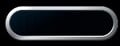 A deactivated Treasure Gauge in Pikmin 4.

Spray counter[edit]


In Pikmin 2 and Pikmin 3, after the player has created at least one spray, a counter will appear on the left side of the screen.
In Pikmin 2, the counter has a D-pad shaped symbol ( ) on the GameCube, and a "1" and a "2" inside circles (
 and
and  ) on the Wii. If a specific spray type has been discovered, a dot of its color appears on the equivalent D-pad direction. Above or below the D-pad or Wii Remote buttons, an icon representing the spray can be seen, followed by a multiplication sign and the number of sprays available of that type.
In Pikmin 3, the counter is instead a simple icon showing the spray, followed by a multiplication symbol and the number of sprays on hand. Underneath is a bar that shows how close the player is to a new spray.
Despite the fact that Pikmin 4 has Ultra-Spicy Spray, there is no HUD icon for it; it is instead a part of the pack menu.
Pikmin 2 main[edit]
These items appear in Pikmin 2 exclusively.
Sublevel[edit]

When in a cave in Pikmin 2, the day counter is replaced with a sublevel counter. Much like with the day counter, the word "SUBLEVEL" appears atop a bubble, that contains the sublevel number inside. When on the final sublevel, the words "FINAL" and "FLOOR" appear instead, in yellow.
Pikmin 3 main[edit]
These HUD elements appear in Pikmin 3 exclusively. Note that this does not include Pikmin 3 Deluxe.
Juice counter[edit]

This counter appears on the top-right corner of the screen, below the day counter, and merely states how many bottles of juice the player currently has. This does not get updated during the day, seeing as recovered fruits are only juiced when the day ends. If this number reads 0 and the player has not collected any fruit yet, the bottle will blink in an orange color to draw attention to the fact that there won't be food to consume if the day ends. Otherwise, if the number shows a 0, 1, or 2, the bottle will gently blink yellow.
Recovered fruit list[edit]

This list shows all of the fruits collected in the current day right under the juice counter. A new column of fruits is started after every 7th fruit collected. If a fruit is in more than two pieces, the list will show a piece of the fruit with a counter next to it showing how many pieces have been collected, until the entire fruit has been retrieved. In 2-player mode in Pikmin 3 Deluxe, this is at the center of the screen.
Pikmin 3 Deluxe main[edit]
These HUD elements appear in Pikmin 3 Deluxe exclusively.
KopPad button[edit]

In Pikmin 3 Deluxe, a bubble exists at the bottom of the screen to the right of the health display to indicate that pressing  opens the KopPad.
Hints button[edit]

In Pikmin 3 Deluxe, a bubble exists to the right of the KopPad button to indicate that pressing  opens the current Hint. This bubble sparkles if a new hint is available, and otherwise looks similar to the KopPad button. It only appears if "Hint Display" is turned on in the Options menu.
Pikmin 4 main[edit]
These HUD elements appear in Pikmin 4 exclusively.
Announcement[edit]

During certain circumstances, an announcement will appear on the screen, and depending on the type of announcement, the location and appearance will change. For example, some of these announcements include collecting a new treasure, a pile of raw materials, destroying an obstacle or constructing a tool, and more.
For announcements at the top of the screen, which include collecting a new treasure or a pile of raw materials, an image will appear and a jingle will play. For announcements that appear at the top of the screen with no image, such as a destroyed dirt wall, a lower-pitched jingle will play. Any announcements appearing towards the right of the screen will not be accompanied by any jingle, such as a new Voyage Log entry, though some will appear with an image, such as when a repeated treasure is collected.
Sparklium and raw material counter[edit]

In Pikmin 4, at the top right of the screen, the Sparklium total will be listed with the Sparklium icon on the left side of the number. The left number displays the total amount of Sparklium collected, and the right number showcases the amount of Sparklium needed to unlock a new area. Once the Primordial Thicket is unlocked, this second number will disappear, leaving only the number representing the total amount of Sparklium collected.
Left of these numbers lies the raw material counter, again with an icon of raw material on the left side. This icon will appear once a raw material has been picked up, or after Russ has been rescued. Whenever a raw material is collected, a small "+1" will appear above the number in yellow, letting the player know the counter has increased. If a raw material is instead converted into clay, a small "-1" will appear below the number in red instead, letting the player know raw materials are being used.
Mission display[edit]
Whenever a mission is pinned in the mission app, or at the end of a day, it will appear at the bottom left corner of the screen. This display is box-shaped, with the top part stating whether the mission is a Main Mission or a Side Mission, and the bottom parts offers a brief description of the mission's objective(s).
Tablet button[edit]
If something new is added to or updated in the tablet, this button will appear below the Sparklium counter. It indicates that something has changed with the tablet, such as a new Voyage Log entry, and that is can be opened by pressing  . The button with have the word "New" written in pink displayed at the top left, and when the new addition to the tablet is directly, viewed, the tablet button will disappear.
Hey! Pikmin main[edit]

These HUD elements appear in Hey! Pikmin exclusively.
Whistle button[edit]
In the lower right corner of the touch screen, there is an icon of a whistle. Tapping it uses the whistle.
Jetpack button[edit]
To the left of the whistle button is a button with the icon of a jetpack. Tapping it activates the jetpack.
Sparklium counter[edit]
To the right of the Pikmin counter on the top screen, there is a counter for the value of all the Sparklium Seeds collected in the current area.
Treasure icons[edit]
On the top right of the top screen, there are gray circles representing the treasures in the area. When a treasure is collected, its corresponding circle will be filled in with the icon for the treasure.
|
The following article or section is in need of assistance from someone who plays Hey! Pikmin. |
Boss health bar[edit]
In boss areas, the Sparklium counter and treasure icons are replaced by a bar for the health of the boss. This bar contains an icon for the boss and a long horizontal line. This line starts completely magenta, and as the health of the boss decreases, more and more of the bar turns gray, from right to left.
Pikmin 2 Challenge Mode[edit]
Challenge Mode in Pikmin 2 features some different items. The Treasure Gauge, the sun meter, the day counter, and the total Pikmin counter number are missing in this game mode.
Time[edit]

In Pikmin 2's Challenge Mode, the sublevel counter is replaced by a timer. The word "TIME" is on top of an oval bubble, which contains the time left inside. When the timer reaches 10 seconds, it becomes red. Upon entering a new sublevel, some more time is added, and the timer's numbers pop out for a second to signal this change.
Pokos[edit]

This item is on the top of the screen, with a Poko symbol to its left. The number inside the square bubble indicates the amount of Pokos collected thus far in this challenge, and whenever it changes, the digits pop out momentarily.
Deaths[edit]

Much like the Poko counter, a number inside a rectangular bubble indicates the number of Pikmin who died in this challenge so far. This counter is to the right of the Poko counter, and the icon to its left is that of a Pikmin soul. Likewise, the digits pop out when this number changes.
2-Player layout[edit]
The layout of the HUD items is different in 2-Player mode. The icon and health for each leader appears individually on the respective player's screen, on the top-left corner. The left side of each screen lists the available sprays, which are shared between players. The bottom-left corner of each screen indicates the standby Pikmin and the Pikmin counter.
The top-right corner of the top screen indicates the time left, which is the same as its position in single-player Challenge Mode. On the bottom-right of the top screen there is the Poko counter, and the top-right corner of the bottom screen contains the Pikmin death counter.
Pikmin 2 2-Player Battle[edit]
The 2-Player Battle mode in Pikmin 2 features some unique HUD elements. The main items match the same position as those in Challenge Mode with 2 players.
Roulette wheel[edit]

If the player has at least one power in hold, the roulette wheel will appear on the right side of their screen. When the roulette is spun, several squares with icons will roll down, until it eventually stops. The square of the standby power will pop out and wiggle about; a flashy  /
/  icon will also appear above it.
There are four bubbles on top of the roulette wheel, which become red as more roulette wheel spins are in queue. When there is no power in standby, the entire roulette and the bubbles disappear.
Marbles[edit]

On the lower-right corner of each player's screen, four bubbles appear. These indicate how many yellow marbles the player has collected, with each one retrieved filling up an empty bubble with a marble icon.
Mission Mode and Side Stories[edit]
Mission Mode and the Side Stories in Pikmin 3 and Pikmin 3 Deluxe have some unique elements that show information about the player's progress in the current mission.
Collect Treasure! counter[edit]

This meter displays how many Pokos the player has collected. This meter also displays how close the player is to achieving the next medal (bronze, silver, gold, platinum). The meter doesn't show notches below zero or above the platinum score.
Battle Enemies! counter[edit]

This is the Battle Enemies! counterpart to the above Poko bar, showing the amount of enemies that the player has defeated. Unlike the Poko meter, this meter also displays the amount of enemies left to defeat.
Pikmin Reunion counter[edit]

This variant of the Collect Treasure! counter appears in Pikmin Reunion, and contains a box to display how many Pikmin the player has collected.
Time[edit]

The time remaining to clear a Mission Mode or Side Stories stage. It shows the time remaining, and flashes to warn the player when a quarter of the allotted time has elapsed. It is in the top right corner of the screen.
Time counter[edit]

This counter displays the time remaining in Side Story missions based on completing a single task within a time limit. It replaces the standard timer. The medal displayed changes as the timer counts down. It is in the top left corner of the screen.
Bingo Battle[edit]
The following HUD items are exclusive to Bingo Battle.
Roulette wheel[edit]

The roulette wheel shows the player what power-up they currently possess, and how many powers, up to a total of five, the player has in reserve. The powers are earned via Cupid’s Grenades.
Bingo Card[edit]

The Bingo card of each team. Collected fruits or enemies are filled in with a white background, and a no symbol appears over anything the player cannot collect (due to the other team collecting all of the enemies/fruits of that type). A question mark represents any item that cannot be obtained yet, like for instance, an object inside an enemy.
Pikmin 4 alternative game modes[edit]
There are 4 alternative game modes in Pikmin 4: Dandori Challenges, Dandori Battle, night expeditions, and Olimar's Shipwreck Tale.
In Dandori Battles, the location of the player's health bars are moved towards the bottom left. In Dandori Challenges, the tablet button will be displayed constantly, though it lacks the pink-colored "New".
Time[edit]
In Dandori Battles and Dandori Challenges, an in-game timer will be displayed in a small box at the top center of the screen. It shows the amount of time left in the stage. For Dandori Battles, when there is 1-minute or 30-seconds left, a red warning will appear across the screen, and when there's 10-seconds left, a large transparent countdown will begin on both screens. For Dandori Challenges, a similar warning occurs, but when 30 seconds are left, the timer will flash in warning briefly. When 10 seconds are left, the timer will flash red until it ends.
Dandori Battle and Dandori Challenge points[edit]


Across the top of the screen in Dandori Battles lies the player's and their opponent's points. These points represent the total  Dandori points earned so far. Similar to the Story Mode counters, a small "+ (number)" will appear above the number in yellow when the points increase, and a small "- (number)" will appear below when the points decrease.
In Dandori Challenges, these points are located at the top left of the screen. The top row displays the total amount of