


Pause menu
During gameplay, it is possible to open a pause menu. When this menu is opened, the gameplay is halted, making this the primary way of pausing the game. The contents of the pause menu vary significantly between games and game modes, but in general, they contain options to return to another menu screen or to change basic settings.
Pikmin[edit]
| Pause menu | |
|---|---|

| |
| Accessed from | Gameplay |
| Provides access to | Day results menu (in Story Mode), Saved game selection menu (in Story Mode), Challenge Mode menu (in Challenge Mode) |
| Music | The music of the current area |
In Pikmin, the pause menu is opened with  /
/  /
/  , and it is simple, with only three options. The first is titled "Continue" and resumes the gameplay. The second option, called "Go to Sunset", opens a sub-menu, asking "Go to Sunset?", and the options "Yes" and "No". By selecting "Yes", the day automatically ends and the sunset cutscenes begin. By picking "No", the player is taken back to the main pause menu. The sunset option is grayed out during Challenge Mode. The third option is called "Continue from Last Save" ("Continue from previous save" in New Play Control! Pikmin), and when picked, a sub-menu opens, asking if the player is sure. By picking "Yes", the player is taken to the saved game selection menu. Picking "No" returns to the main pause menu. This third option is called "Quit Challenge Mode" while in Challenge Mode, and by choosing "Yes" to the question, the game returns to the Challenge Mode menu.
In this menu, the pause button also picks an option. Care should be taken not to accidentally pick an option while attempting to unpause the game.
Pikmin 2[edit]
| Pause menu | |
|---|---|
| |
| Accessed from | Gameplay |
| Provides access to | Day results menu |
| Music | The music of the current area |


The Pikmin 2 pause menu is fairly complex, containing the radar and a lot of other information, as well as a menu similar to the one in Pikmin. This menu is separated into three pages, which can be changed by pressing  /
/  /
/  and
and  /
/  /
/  .
.
The "Radar" page contains the radar on the right side, with the name of the area or cave on top of it. To the left is the number of Pikmin on the Onions, on the ship, following the current leader, and idle. These numbers, besides the idle one, are listed for each Pikmin type.
Above ground, the "Menu" page contains a simple menu with the options "Continue" and "Go to Sunset". By choosing "Continue", the gameplay continues, same as if the player had pressed the pause button at any time while on the menu. Picking the option "Go to Sunset" opens a sub-menu, asking "End this day?", and the answers "Yes" or "No". Picking "Yes" ends the day and begins the sunset cutscenes. This page also contains the grand total of Pokos obtained on the bottom. While inside a cave, however, the two options on this page are "Continue" and "Give Up and Escape". Choosing the latter will ask the player if they wish to abandon all their treasure and return to the surface. If Pikmin seeds are left behind, the player will also be warned. In addition, when inside a cave, the total number of Pokos collected while underground will also appear in this page.
The "Items" page contains a list of all collected Exploration Kit treasures. Uncollected treasures appear grayed out, and titled "Incomplete", while collected ones appear in color and named. On the left side of the page, there is information about the sprays, with two sections; the top one dedicated for the ultra-bitter spray and the bottom one for the ultra-spicy spray. Each section contains the current number of sprays and the current number of Burgeoning Spiderwort berries, out of 10. When 10 are collected, the spray counter increases and the berry counter resets to 0.
If playing in Challenge Mode or 2-Player Battle mode, the entire menu is replaced with a simple message box, akin to the one in Pikmin. This contains the option "Continue" and the option "Give Up"/"Quit" (Challenge Mode or 2-Player Battle, respectively). The former unpauses the game, and the latter returns to the respective game mode's main menu, without asking for a confirmation. In Challenge Mode, however, a brief cutscene plays showing the Research Pod beaming the leaders and flying away.
Pikmin 3[edit]
| Pause menu | |
|---|---|

| |
| Accessed from | Gameplay |
| Provides access to | Day results menu (Story Mode), Day selection menu (Story Mode), Mission Mode menu (Mission Mode), Bingo Battle menu (Bingo Battle) |
| Music | None |
The pause menus in Pikmin 3 are relatively basic, each containing a few main options which must be confirmed by the player upon being selected. In Story Mode, the "Retry Area" button will restart the current day in the same area, the "End Day" button will instantly end the day and play the sunset cutscene (the player will have to confirm a second time if there are Pikmin in the field that are not safe), and the "To Earlier Day" button ("Change Day" in the European version) brings the player back to the day selection menu.
In Mission Mode, the "Continue" button does the same thing as exiting the menu with the pause button, the "Retry" button restarts the mission, and the "Stage Selection" button returns to the Mission Mode menu.
In Bingo Battle, the "Continue" button does the same thing as exiting the menu with the pause button, and the "Stage Selection" button returns to the stage selection screen of the Bingo Battle menu.
In addition, a " Mode" button in the lower right is present in all modes, and toggles the GamePad control scheme between classic mode and stylus mode. This button was added in version 2.0.0.
Pikmin 3 Deluxe[edit]
| Options menu | |
|---|---|

| |
| Accessed from | Gameplay and most menu screens |
| Music | None (during gameplay), music of the current menu (if opened while viewing a menu screen) |
The pause menus are significantly changed in Pikmin 3 Deluxe from what they were in Pikmin 3, containing many more options. The stylus mode icon has been removed. The options visible depend on where the pause menu is being viewed from, as a button can be used to bring up the menu on nearly every screen in the game. This button is the  button in most cases, but in 2-player mode when each player is using a single Joy-Con, player 2 can press the or button to pause, depending on which is available, and player 1 cannot pause the game. There is often a prompt in the bottom-right corner of other menus labeled "Options", and the menu is called the "Options menu" in-game. A list of all the possible buttons is shown below.
- Upper row
- Play Co-op/Play Solo: Switches gameplay between 1-player and 2-player by bringing up the Nintendo Switch interface for controller connection. The text will be different depending on whether the game is currently in 1-player or 2-player. Appears only during Story Mode and Side Stories gameplay.
- Upper middle row
- Retry: Allows the player to try a day again. Appears only during Story Mode gameplay. A popup will appear upon selecting the option, containing 3 buttons:
- Restart Day: Makes the screen fade to black and the loading screen appear.
- To Earlier Day: Makes the screen fade to black and the day selection menu appear.
- Cancel: Returns to the main pause menu.
- Restart Stage: Allows the player to restart the current mission or match of Bingo Battle. A pop-up will first appear to confirm the player's choice. Appears only during Mission Mode and Bingo Battle gameplay.
- Restart Day (as a standalone button): Allows the player to restart the current Side Story mission. A pop-up will first appear to confirm the player's choice. Appears only during Side Stories gameplay.
- End Day: Allows the player to end the day, skipping to the sunset cutscene. A pop-up will first appear to confirm the player's choice. Appears only during Story Mode gameplay.
- To Stage Select: Allows the player to return to the Mission Mode menu or Bingo Battle menu, on the stage selection page. Appears only during Mission Mode and Bingo Battle gameplay.
- To Day Selection: Allows the player to return to the Side Stories menu, on the day selection page. Appears only during Side Stories gameplay.
- To Mission Select: Allows the player to return to the mission type selection page in the Mission Mode menu from one of its subsequent pages. Appears only while in the Mission Mode menu and not in the mission type selection page.
- To Side Stories: Allows the player to return to the story selection page in the Side Stories menu from one of its subsequent pages. Appears only while in the Side Stories menu and not in the story selection page.
- To Title Screen: Allows the player to return to the main menu. A pop-up will first appear to confirm the player's choice. Appears in all pause menus except the one on the title screen.
- Lower middle row
- Hints: Shows a hint. The button will glow with sparkles if there is a new hint to look at; otherwise it will look like the other buttons. Appears only during Story Mode gameplay.
- Basic Info: Brings up a menu with lots of basic information about how the game works, such as what each Pikmin type does and how certain game mechanics function. Appears in all pause menus.
- Control Guide: Brings up the control guide, containing descriptions of the different styles of controls in the game. Appears in all pause menus.
- Other Settings: Allows various options about the game to be controlled, similar to the options menu in Pikmin and Pikmin 2. Appears in all pause menus.
- Radar
- Mini Radar Display: Controls whether a small radar appears in the HUD.
- Mini Radar Orientation: Controls whether the mini radar is oriented based on the direction the active leader is facing, or oriented with north at the top at all times.
- Radar Orientation: Controls whether the main radar is oriented based on the direction the active leader is facing, or oriented with north at the top at all times.
- Gyro
- Gyro Function: Controls whether motion controls are active. If this is set to off, the other 3 options will be greyed out, as they do not apply when the gyro is turned off.
- Cursor Control: Controls whether the cursor is mainly controlled with the
 stick or by pointing with motion controls. If this is set to Pointer, the other 3 options will be greyed out.
 - Gyro Control (U/D): Controls the inversion of upwards and downwards cursor movement in response to tilting the controller, if Cursor Control is set to Stick.
- Gyro Control (L/R): Controls the inversion of leftwards and rightwards cursor movement in response to tilting the controller, if Cursor Control is set to Stick.
- More
- Radar

- Lower row
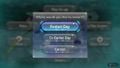 The pop-up for restarting a day.
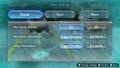 The options for the radar settings.
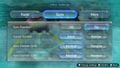 The options for the gyro settings.
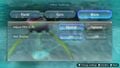 The options for the miscellaneous settings.


Basic Information[edit]
The Basic Information menu contains lots of information about the game and how to play it. It contains 6 categories: "Pikmin Types", "Story", "Mission", "Side Story", "Bingo Battle", and "Options". The left side of the screen is a list while the right side contains an image and some text about the topic selected. The list can be navigated with , and selecting a category with  will show a list of pages within that category, in a different graphical style to distinguish them from the category buttons.
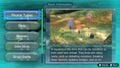 The main page with Pikmin Types selected.
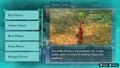 The Pikmin Types category page with Red Pikmin selected.


Control Guide[edit]
- For the Control Guide in Pikmin 4, see Gameplay Guide.
The Control Guide menu contains descriptions of the game's controls. It contains 3 pages, which in a list on the left side: double Joy-Con, single Joy-Con, and multiplayer. Selecting one with will show an image of the controller and a description of what each button does, or for the multiplayer page, how controllers can be split up when playing in 2-player mode. Pressing will bring up an Actions page, with information on all the actions that can be done in the game, in the same format as the basic information menu. These descriptions have looping videos of what the action does. The Actions page is different based on what page was selected in the main part of the menu when the Actions page was opened.
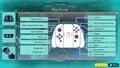 The controls when playing with 2 Joy-Con.
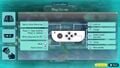 The controls when playing with a single Joy-Con.
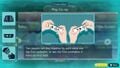 Dividing up controllers in 2-player.


Badges[edit]
The Badges menu allows the player to view the badges they have obtained. Its main page displays the badges in a grid, with a badge's icon shown if it has been obtained and a question mark shown if this is not the case. The badges can be navigated with and selecting a badge with will show a page about it, with its name, icon (if obtained), description, condition, and the progress the player has made towards that condition. Pressing  toggles between the List page and the Rank page. The Rank page shows the proportion of badges that the player has obtained, as well as the proportions in 5 categories: Story Badges, Side Story Badges, Mission Badges, Bingo Battle Badges, and Dedicated Badges. Selecting one of these categories will show a list of just the badges in that category.
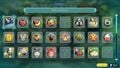 The List page.
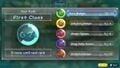 The Rank page.
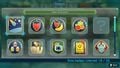 The list of Story Badges.
 A single badge's page.


Pikmin 4[edit]
| Options menu | |
|---|---|
 The menu seen from the Rescue Command Post | |
| Accessed from | Gameplay |
| Music | Current location's music (quiet) |
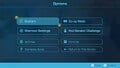
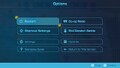
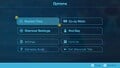
The pause screen in Pikmin 4 is quite similar to the one present in Pikmin 3 Deluxe. There are 8 options to choose from, with the top 4 being more gameplay focused, as well as bigger in size, and the bottom 4 are more setting focused. The options will change slightly depending on where the menu is being accessed, though they basically function the same way.
To bring up this menu, players will have to press . Pressing brings up the Radar Map instead, accessed via the tablet. If a single horizontal Joy-Con is used, then the menu will be activated by pressing either of the two buttons, depending on which one player 1 is using. It will open the Radar Map first, then if the player presses the button again, the Options menu will open. Player 2 will not be able to activate either menus. Going from left-to-right, the options will be:
- Rewind Time / Restart
- Co-op Mode / Single-Player Mode
- Shortcut Settings
- End Day / Night Expedition; Return to Surface; Exit Dandori Battle / Dandori Challenge / Challenge
- Settings
- Controls
- Gameplay Guide
- Return to Title Screen / Exit Shipwreck Tale / Save and Return to Title.
 The pause screen in an area (excluding the Rescue Command Post).
 The pause screen in a cave.
 The pause screen in a Dandori Challenge.
 The pause screen in a Dandori Battle.
 The pause screen in Dandori Battle mode.
 The pause screen in Olimar's Shipwreck Tale.
 The pause screen in a night expedition.
 The pause screen in the Trial of the Sage Leaf.
 The pause screen mode in Co-op Mode. Takes place in the Rescue Command Post.


Rewind Time / Restart[edit]
- See: Rewind Time
The Rewind Time option, the 1st option, can be seen in 3 different locations. The first is in any area, such as the Sun-Speckled Terrace or Giant's Hearth. It can also be seen in the Rescue Command Post, but the button will be grayed-out, making it unselectable. The second is inside of any cave, such as the Drafty Gallery or Engulfed Castle. The third and final is in Olimar's Shipwreck Tale.
When the player selects this option, they will be brought to the Rewind Time menu. This menu is split in half, aside from the name of the area, which is displayed at the top center. The left side of the menu is called "Now", and it is a box showcasing all the discoveries the player has made during the day or on the sublevel, as well as the total amount of each Pikmin type they have in their squad. At the bottom of the box, it shows the total amount of Pikmin that have perished during the day / sublevel, the total amount of Sparklium obtained, and the total amount of raw material in the player's possession. The right side of the menu is the part the player will interact with. It is called "Rewind", and it is an identical looking box compared to the one on the left side. If enough time has passed, more boxes will appear, which the player can move between using  /
/  . Underneath the "Rewind" label, it will say how much time has passed – aside from the left-most box. This left-most box will let the player rewind to the start of the day / sublevel, or from when they exited the last cave they entered (including Dandori caves). If the player rewinds back to before they have collected either a treasure, castaway or Onion (displayed on the Discoveries section), the icon will become grayed-out.
If this option is selected, a Rewind Time confirmation menu will pop-up, asking the player if they are sure they want to rewind. If there is only one selectable option, as enough time has not passed, the menu will state "Rewind time to your arrival in the area" or "Rewind time to the start of the sublevel" etc. If multiple options are available, and the player chooses any option aside from the earliest one, the menu will state "Rewind time X minutes". If the player instead picks the earliest one, the same message will appear (such as "Rewind time to your arrival in the area") but a warning will red text will be displayed. It states "You'll lose more recent progress."
The Restart option can be seen more commonly. It can be seen in Dandori Challenges and Dandori Battles, including Dandori Battle mode (accessed from the title screen), though it will be grayed-out. It finally be seen in the Trial of the Sage Leaf and night expeditions. Selecting this option brings up a basic menu that asks the player whether they'd like to restart whatever game mode they're playing. There are only two buttons selectable: Restart or Cancel. Cancel brings the player back to the Options menu screen, and pressing Restart will take the player back to the start of the stage. Strangely for night expeditions, the warning "You'll lose more recent progress." will be displayed.
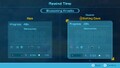 The Rewind Time menu in an area.
 The Rewind Time confirmation menu. No other options can be picked.
 The Rewind Time confirmation menu. The most recent option has been picked.
 The Rewind Time confirmation menu. The least recent option has been picked.
 The restart menu in a Dandori Challenge.
 The restart menu in a Dandori Battle.
 The restart menu in a night expedition.
 The restart menu in the Trial of the Sage Leaf.


Co-op Mode / Single-Player Mode[edit]
- See: Co-op Mode
The Co-op Mode option, the 2nd option, can be seen at any location, so long as the player is in single-player. The same goes for the Single-Player Mode option, though it only appears when playing multiplayer. Pressing this button brings up the Nintendo Switch's controller connection screen.
When the player presses the button when in single-player, a new mini menu will appear if this is the first time the player accesses the mode during their play session. If the player was to exit Co-op Mode, and then re-enter it right after, these menus will not appear. 5 menus appear, which demonstrate the controls for both player 1 and 2, as well as a video demonstration for player 2. It then explains Co-op Points and how to exit the mode. When the player presses the button when in multiplayer, a single mini menu will appear warning the player that if they exit Co-op Mode, they will lose all items the Pebble Pitcher has collected. This menu will appear every time.
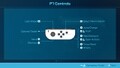 The 1st Co-op Mode menu.
 The 2nd Co-op Mode menu.
 The 3rd Co-op Mode menu.
 The 4th Co-op Mode menu.
 The 5th Co-op Mode menu.
 The only Single-Player mode menu.


Shortcut Settings[edit]
The Shortcut Settings option, the 3rd option, can be accessed anywhere aside from Dandori Battle mode, which is accessed via the title screen. Pressing this button takes the player to the Shortcut Settings menu.
On this menu, the player can assign special functions for specific buttons. The top option is for  . If the tutorial was done with 2 vertical Joy-Con controllers, no function will assigned to it by default, but if the tutorial was done with a horizontal Joy-Con, Mission will be assigned to it by default. Below this option lies 4 more, 1 for each
  button. If the tutorial was done with 2 vertical Joy-Con controllers, Mission will be assigned to the
  button by default, but if the tutorial was done with a horizontal Joy-Con, nothing will be assigned to it by default. In versions 1.0.1 and 1.0.2, when the player unlocks the Survey Drone and Ultra-Spicy Spray, they will be assigned to the and buttons respectively, and in version 1.1.0, Commands will be assigned to , Switch will be assigned to
  , and Pack will be assigned to .
Underneath these 4 options lies a notice in red text stating:
You can only use
/  when holding your Joy-Con controller in solo horizontal grip.
And at the bottom of this menu lies a few button prompts. These are  Gameplay Guide,
  Revert Settings, Remove,
  Close, and Assign. Pressing and holding brings up the GamePlay Guide. Pressing reverts any of the player's choices back to the default, as seen previously, and pressing removes the highlighted option. closes this menu and brings the player back to the Options menu, and pressing takes the player to a list of assignable functions — a full list can be seen here. This menu list is scrollable, and there lies only 3 button prompts at the bottom: